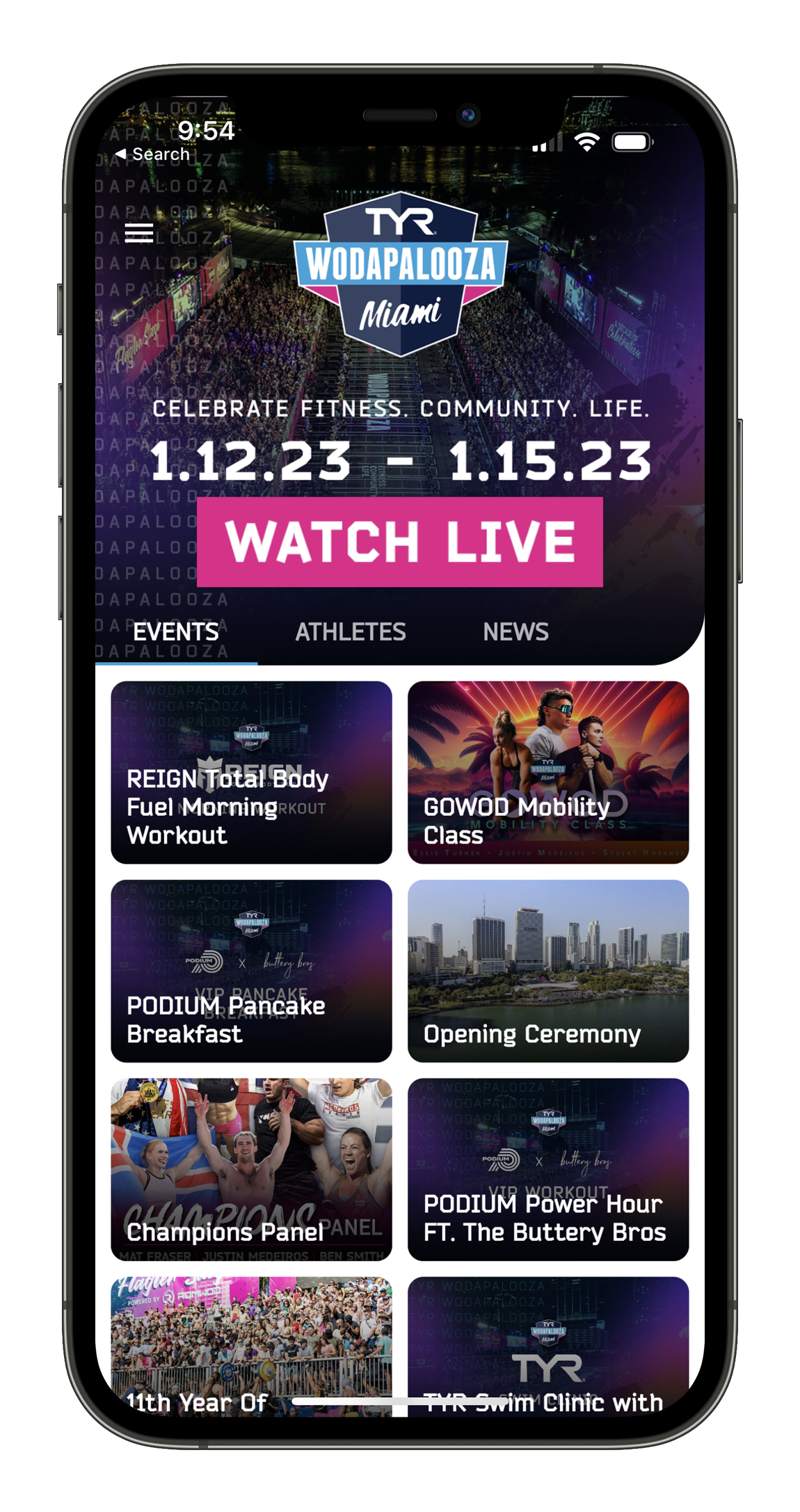
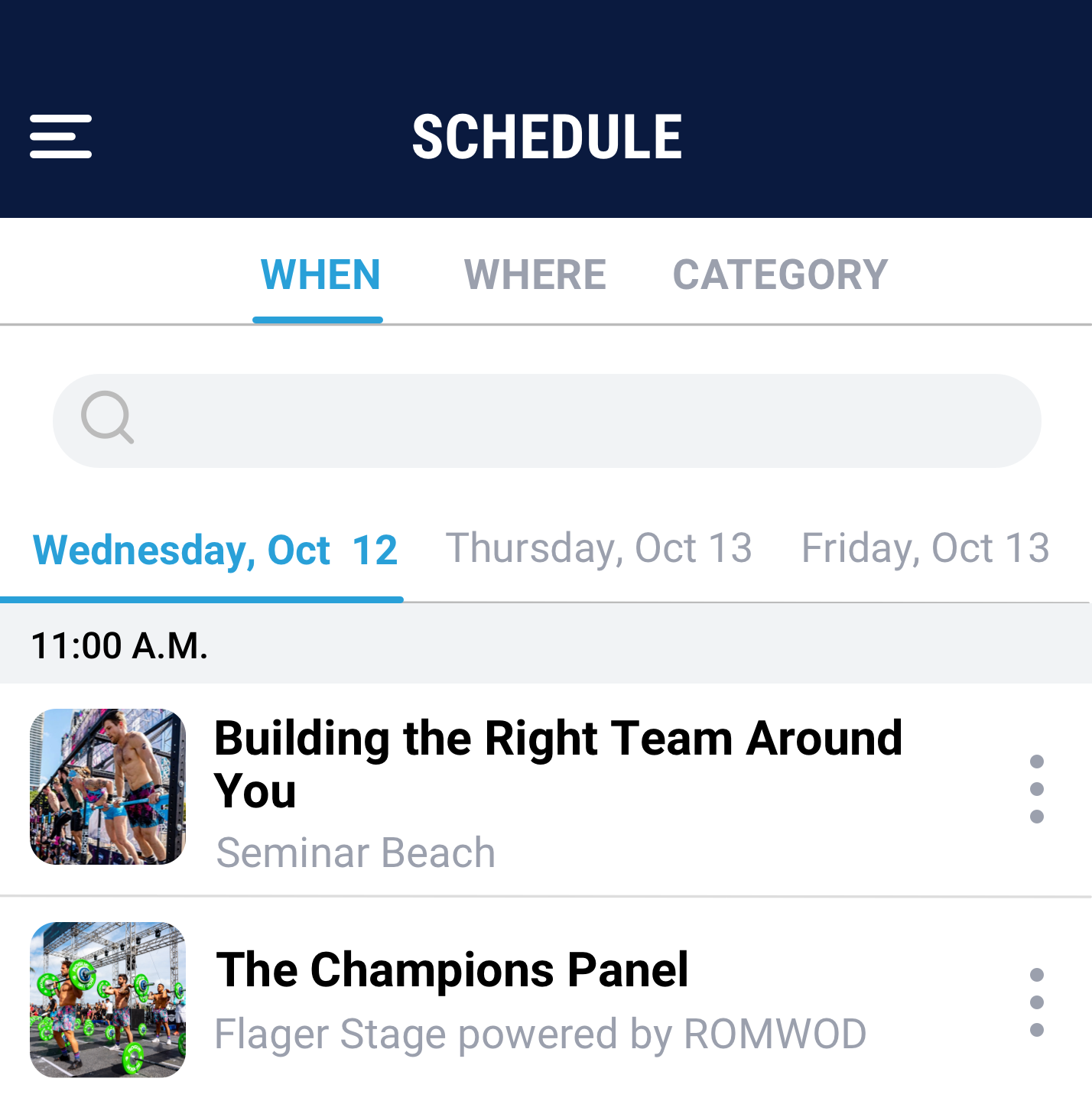
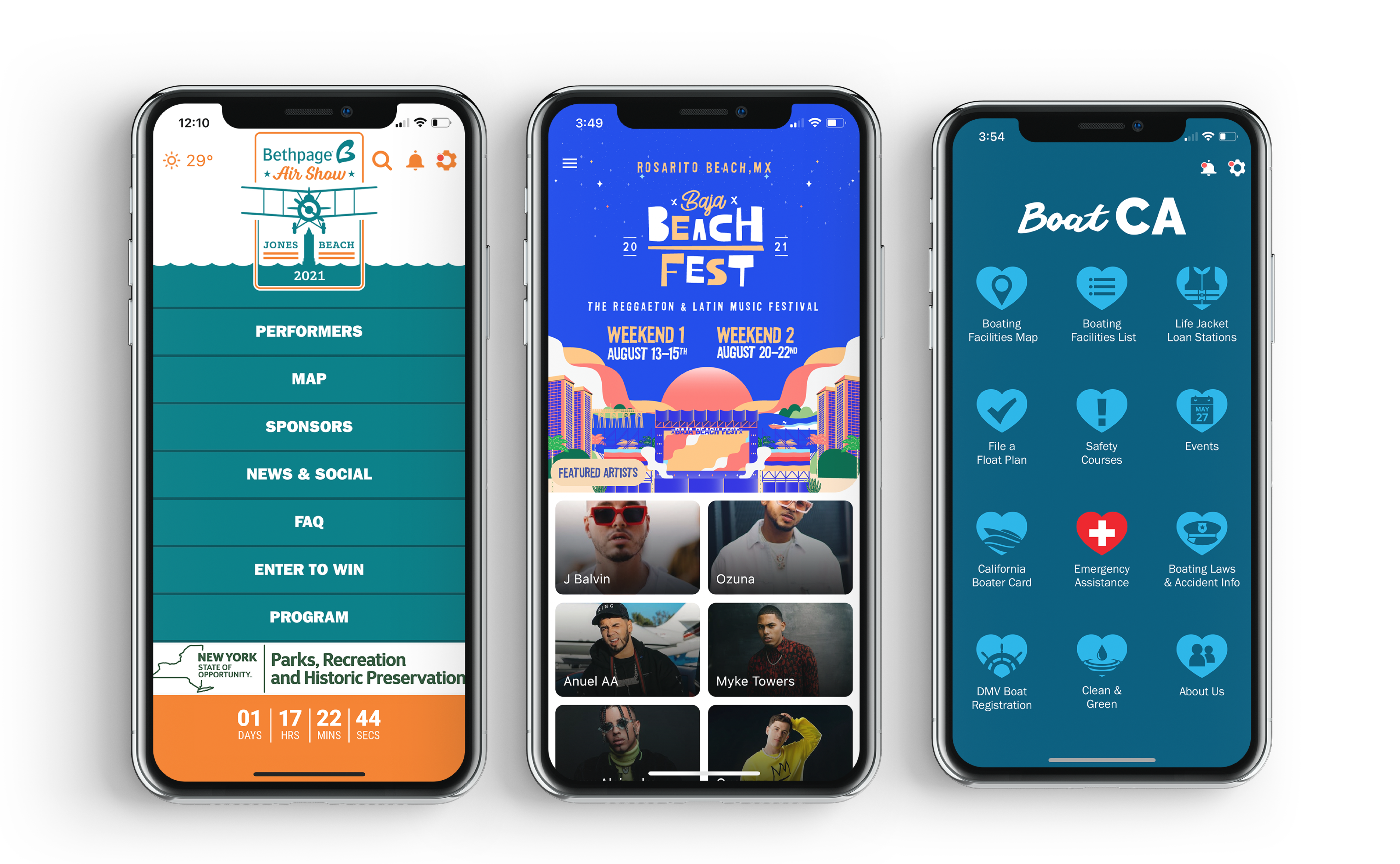
Conversations just got even better and more interactive with the official launch of TableTopics Mobile – apps for the iPhone and iPad. Now you can bring TableTopics Questions To Start Great Conversations everywhere and anywhere you go! And, these new apps leverage the best of technology to include fun, unique features for you to experience, like creating your own question cards and saving your favorite answers.
The app comes loaded with two question sets, STARTER SET and HAPPY HOUR for just $2.99. There are four more question sets FIRST DATE, IN FLIGHT, GOURMET and GO GREEN for $1.99 each, an easy in app purchase. Each conversation starter app includes 60 question cards that you get to “swipe” through on your iPhone.
The features in TableTopics Mobile have been designed to spark fun and interesting conversations wherever you go. You can personalize and customize each of your conversation starter sets! The PLAY feature and options let you create your own question cards, save answers, mark your favorite questions and hide cards. You can also hit “Shuffle” at anytime to mix up your decks.
This is just the beginning . . . we will be launching more question sets for your iPhone throughout 2011!
Video
Screenshots
![]() |
![]() | ![]() | ![]() |
![]() | ![]() | ![]() | ![]() |
Frequently Asked Questions
How do I save an answer for a particular card?While in the card view, tap “options” at the bottom of the screen. Four possible options are presented. Tapping on “save an answer” brings up a blank answer card with the ability to personalize it with your name and your own answer. Once finished, tap the “save” option at the bottom of the screen. Or, tap “cancel” if you want to go back to the deck.
Where can my saved answers be located?
While in the topic menu, tap of the “favorites” option to view both your favorite questions and the answers you’ve created. Tap “favorite answers” at the bottom of the screen, and a list view of all saved answers will appear.
I don’t like one of my answers, and I want to change it. How can I do that?
In the topic menu, tap “favorites” and then “favorite answers” at the bottom of the screen. Find the answer you want in the list view and tap on it. Your answer to the question will be presented. By tapping “edit” at the bottom of the screen, you can change the text of your answer card, or even delete the answer entirely by scrolling down to the bottom of the screen and tapping “delete answer.”
How do I favorite a question card?
While in the card view of a particular set, tap “options” at the bottom of the screen to bring up the the four universal options for all cards. Tap “mark as favorite” to add the card to your favorite questions. Tap it again to undo this action.
I created a card, but I don’t want it in the deck anymore. How do I get rid of it?
In the card view, find the created card (created cards are at the end of the deck unless the deck is shuffled) and tap “options.” Where “hide my card” appears for other cards, there is a “delete my card” option. Tapping that will bring up a final alert asking if you really do want to delete it. Tapping delete again will erase this card from the set.
I’m not able to purchase any of the additional topics. Why is this?
This is an issue regarding a setting on your iPhone. Go into your "Settings" app and select "General". Once there, scroll down and select "Restrictions". You will then need to enter your 4 digit passcode. Scroll down to "In App Purchases" and turn it to "on". You can then return to the TableTopics app and purchase any additional topics.